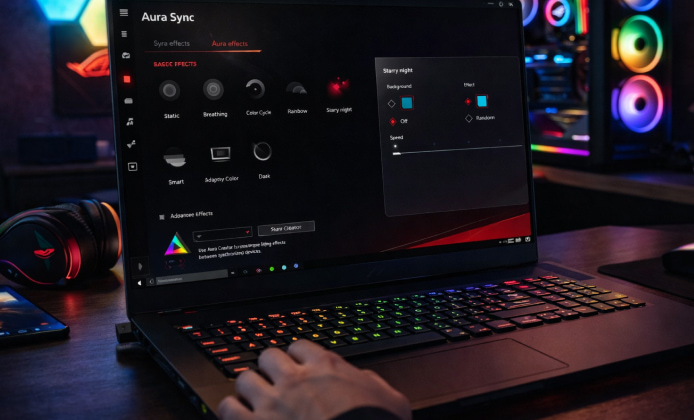
RGB on a laptop can be more than a flashy add-on it can be a practical way to signal power modes, highlight key groups, and match a gaming setup across devices. If your keyboard, light bar, logo, or compatible peripherals support ASUS lighting, you can usually unify everything through one control center and save profiles for work, play, or nighttime use.
Before you begin, take a minute to confirm the basics: your laptop model family (ROG, TUF, Zenbook, etc.), your Windows version, and whether your lighting is controlled through Armoury Crate, an Aura component, or a vendor-specific utility. Some laptops expose only keyboard zones, while others also offer chassis lighting and external device syncing.
What You Can Customize on a Laptop
- Lighting zones: single-zone, 4-zone, or per-key (model-dependent).
- Effects: static, breathing, color cycle, wave, reactive, and music/visualizer modes.
- Brightness and speed: helpful for battery life and late-night use.
- Profiles: separate looks for games, apps, or Windows power states.
A good rule: start simple (one static color), confirm it applies correctly, and only then build layered effects and multi-device sync.
Compatibility Checklist
Most lighting issues come from mismatched software components or disabled services. Use this quick checklist before installing anything:
- Update Windows and reboot.
- Install the latest chipset and graphics drivers from your laptop’s support page.
- Check BIOS/UEFI for any “Stealth Mode” or lighting toggles.
- Confirm that lighting is not disabled by a hotkey (many models use Fn combinations).
On many modern ASUS machines, the easiest starting point is to enable Aura Sync on laptop through the vendor’s official control app and confirm that at least one basic effect works reliably.
Download and Installation Approach That Avoids Common Conflicts
Because ASUS lighting can be managed by multiple overlapping tools, the cleanest setup is usually “one controller at a time.” If you have older Aura utilities installed alongside Armoury Crate, remove duplicates first to prevent services from competing for the same devices.
When you plan your first install, it helps to treat Aura Sync download for laptop as part of a broader “driver + utility” bundle, rather than a single standalone file, so components land in the right order. To reduce headaches, many users prefer doing an Aura Sync for laptop download only after uninstalling older RGB utilities and restarting, which clears residual services and device hooks.
Recommended Installation Steps
- Uninstall older RGB tools you don’t use (including duplicates).
- Restart the laptop.
- Install the ASUS control center your model supports (often Armoury Crate).
- Allow the app to install its required services and device components.
- Reboot again, then test a single static color.
During setup, you can safely download Aura Sync for laptop from your laptop’s support page or the official ASUS software channel, and then keep it updated through the same ecosystem.
Model-Specific Notes for Asus Laptops
Different ASUS lines expose different capabilities, especially with per-key keyboards, external RGB ports, or logo lighting. If your system is an ASUS model, you’ll typically see broader device detection and more polished integrations in the vendor suite.
For owners of ASUS hardware, you’ll often get the best results when Aura Sync on Asus laptop is managed through the same suite that controls performance modes and fan curves, since those features can share profiles and triggers.
Quick Profile Ideas for Everyday Use
- Focus mode: dim white or soft amber, low brightness.
- Gaming mode: wave or reactive effects, medium brightness.
- Battery saver: single static color at minimum brightness, or lights off.
- Streaming: brand accent color + slow breathing effect.
When Lighting Won’t Change or Devices Don’t Appear
If effects won’t apply, work through these in order; each step isolates a common cause without overcomplicating the process.
| Symptom | Likely cause | Fix |
|---|---|---|
| Lighting options are missing | Unsupported model or wrong component | Install the model-specific utility and update drivers |
| Changes don’t apply after selecting an effect | Service conflict or permissions | Close other RGB apps, reboot, run the controller as admin |
| External devices don’t sync | Firmware mismatch or unsupported accessory | Update firmware and verify Aura compatibility |
| Lights turn off on battery | Power plan limitation | Adjust power settings and profile triggers |
If you suspect a corrupted install, a clean reinstall is often faster than chasing edge cases; just remember to install the supported suite first and let it pull any required components automatically.
To complete a full refresh, many people choose to install Aura Sync on laptop only after removing older RGB utilities, restarting twice, and confirming Windows updates are fully applied.
Safety and Performance Tips
- Keep brightness moderate to reduce heat and power draw on thin laptops.
- Avoid stacking multiple RGB controllers at once (they can fight over device access).
- Save a “known good” profile so you can roll back quickly if a new effect misbehaves.
- After big Windows updates, re-check services and update the vendor utility.
FAQ
- Is it possible to use the lighting features without paying? In many cases, the vendor utility is included with the device ecosystem, so Aura Sync free to download for laptop can be true for supported models when you stick to official sources and compatible components.
- Why does my keyboard support only a few effects? Some laptops have limited onboard controllers that expose fewer modes or only allow zone-based lighting. In those cases, you can still create clean, practical profiles by adjusting brightness, speed, and per-app triggers.
- What’s the fastest way to confirm everything works? Set a single static color, apply it, and reboot once if it persists across reboot, your services and device detection are stable, and you can confidently add advanced effects and syncing.
With the right setup, laptop lighting becomes a small but satisfying quality-of-life feature, especially when profiles match your routine and devices stay synchronized without constant tweaking.
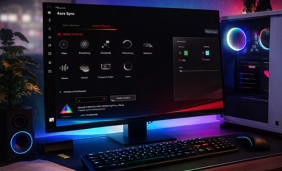 Aura Sync Install Guide: First Launch and Fixes That Actually Work
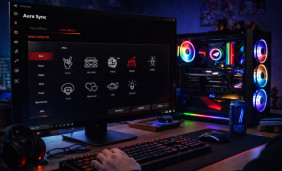 Aura Sync App: Keep Your RGB Devices Consistent and Controlled
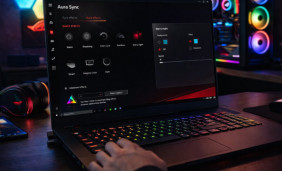 Aura Sync on Laptop: Harmonize RGB Without Conflicts
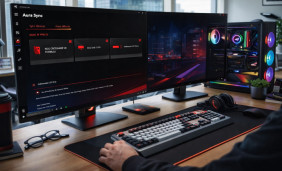 How to Get Aura Sync for Free the Right Way: Light Up Your Setup
 What Is Aura Sync and How to Use?
 Best Apps Similar to Aura Sync