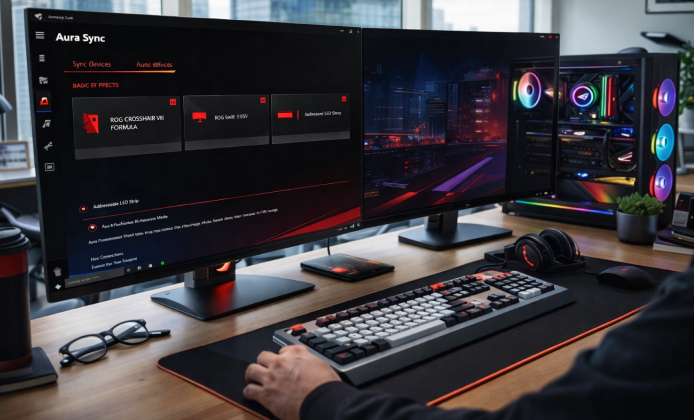
Custom RGB can make a laptop, desktop, or full battlestation feel uniquely yours, especially when every device follows the same pattern and color palette. Aura Sync is ASUS’s lighting ecosystem, and the best part is that you don’t need to pay extra to start using it if your hardware supports the feature.
Below you’ll find practical steps, compatibility tips, and troubleshooting ideas so you can install, configure, and enjoy synchronized lighting without turning the process into a headache.
What “Free” Really Means with Aura Sync App
Aura Sync itself is typically provided at no cost as part of ASUS software bundles like Armoury Crate, which manages lighting, profiles, and supported peripherals. The key is downloading from trusted sources, confirming device support, and keeping firmware and drivers aligned so detection works properly.
When RGB software is installed cleanly and paired with supported devices, the lighting experience becomes “set it once, enjoy it daily.”
Check Compatibility Before You Install
Before you download anything, confirm that your motherboard, laptop model, graphics card, keyboard, mouse, or LED strips are Aura Sync–compatible. If you’re unsure, look for “Aura Sync” or “RGB header” notes on product pages, manuals, or packaging.
- Motherboards: confirm Aura RGB or Addressable Gen 2 headers if you plan to connect LED strips.
- Laptops: some models support only keyboard lighting, while others support chassis zones too.
- Peripherals: ASUS ROG/TUF devices often integrate best, while third-party compatibility can vary.
- RAM and coolers: check whether they’re controlled through Aura/Armoury Crate or their own utility.
If you want a safe starting point, Aura Sync free to download is best taken from ASUS’s official channels instead of random “driver pack” sites.
Where to Get Aura Sync Safely
A common confusion is whether Aura Sync is a standalone app or part of a larger suite. In many cases, ASUS distributes lighting control through Armoury Crate, which also manages device updates, profiles, and performance features on supported systems.
For many users, the simplest route is to download Aura Sync for free via the official ASUS support page for your exact product model, because that page tends to list the most compatible package.
An Installation Workflow That Avoids Most Problems
- Update Windows fully, then reboot to clear pending driver installs.
- Uninstall conflicting RGB utilities you no longer use, and restart once more.
- Install the ASUS package and allow it to finish all components before launching.
- Open the app, let it detect devices, then apply one simple effect first (like Static) to confirm control.
- After success, create profiles and more advanced effects.
Many people search for Aura Sync download for free options on forums, but the most stable results usually come from matching the installer to your exact motherboard or laptop family.
First-Time Setup: Make Your Lighting Look Intentional
Once devices appear in the dashboard, start with a basic structure:
- Choose a base theme (two to three colors max) that fits your wallpaper and case.
- Assign zones so the keyboard, fans, and light strips don’t all compete visually.
- Set brightness lower than you think, especially for night use.
- Use one “hero effect” like Color Cycle, and keep everything else subtle.
On systems where the installer offers a separate module, the free Aura Sync app can be sufficient for lighting alone, while the full suite adds device updates and extra profile features.
Devices Don’t Show Up
- Confirm the device is truly compatible and connected correctly (USB headers, RGB headers, or internal cables).
- Install chipset and motherboard drivers first, then relaunch the lighting software.
- Check BIOS settings related to onboard LEDs or “stealth mode,” then reboot.
Lighting Works, but Effects Stutter
- Reduce the number of layered effects and test with a single static color.
- Disable overlays or background utilities that may hook into hardware monitoring.
- Update firmware for the motherboard, peripherals, and any addressable controllers.
Colors Look Different Across Devices
- Lower brightness on the brightest device so the palette matches.
- Use fewer near-white tones, since different LEDs render whites differently.
- Save a custom color and reuse it across zones instead of relying on presets.
If your goal is a clean install, a free Aura Sync download should be paired with a quick driver check right after setup to keep detection consistent.
Feature Comparison: What You Can Control
| Component | Typical controls | Notes |
|---|---|---|
| Motherboard LEDs | Static, breathing, rainbow, per-zone effects | Often the “hub” for syncing everything else |
| Addressable LED strip | Per-LED patterns, waves, gradients | Requires the correct header type and orientation |
| Keyboard (laptop/desktop) | Zone or per-key lighting (model dependent) | Some models support only preset effects |
| Mouse & headset | Logo lighting, DPI-based effects, sync patterns | USB ports and firmware can affect detection |
Best Practices for Profiles and Daily Use
After you confirm everything syncs, build profiles that match how you use your PC:
- Work profile: low brightness, static color, minimal distractions.
- Game profile: reactive effects or temperature-based colors for quick visual cues.
- Night profile: warm tones and reduced intensity to avoid eye strain.
Many users prefer to free download Aura Sync through model-specific support pages, because the included version can better match the firmware and controller used in that exact lineup.
Using Aura Sync on a Computer: What to Expect
If you’re on a desktop, you typically get the most flexibility with multiple headers, controllers, and room for LED strips. Laptops may provide fewer zones, but the convenience is excellent because lighting is integrated and easy to carry between spaces.
For newcomers who want a straightforward setup, Aura Sync on PC for free is usually easiest when you start with a single effect, verify stability, and only then expand to more complex patterns.
Quick Checklist Before You Call It “Done”
- All devices appear in the dashboard and respond to a basic static color.
- Firmware and core drivers are up to date, especially chipset and USB-related components.
- Profiles are saved and can be switched without the software freezing.
- Brightness and color choices look consistent across devices.
With the right download source, a clean install routine, and a simple first profile, you can enjoy synchronized RGB that looks polished rather than chaotic.
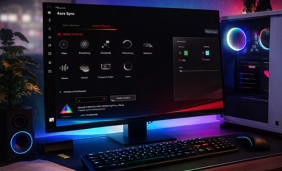 Aura Sync Install Guide: First Launch and Fixes That Actually Work
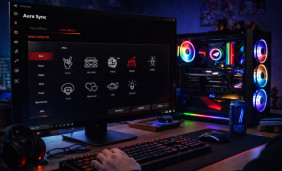 Aura Sync App: Keep Your RGB Devices Consistent and Controlled
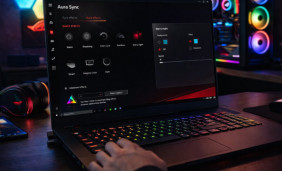 Aura Sync on Laptop: Harmonize RGB Without Conflicts
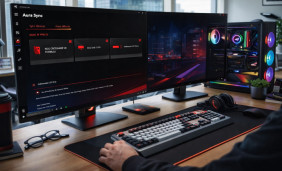 How to Get Aura Sync for Free the Right Way: Light Up Your Setup
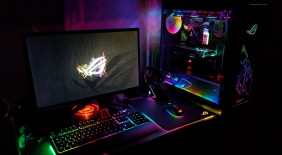 What Is Aura Sync and How to Use?
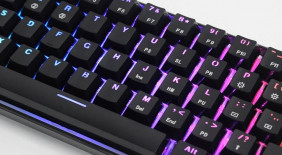 Best Apps Similar to Aura Sync